
The Lighthouse Best Practices category is easy to overlook because it doesn't feed into Core Web Vitals or search ranking directly. But its audits catch real problems: broken JavaScript, insecure connections, and permission prompts that annoy or mislead visitors. Because these issues are usually quick to identify and fix, this category is often one of the fastest wins available for improving your Lighthouse scores.
In this article, we'll go through every audit in Lighthouse's Best Practices category, explain how each one can impact users, and how to fix the issues that cause your page to fail.
What is Lighthouse?
Lighthouse is a free tool from Google that analyzes web pages and provides recommendations for improving performance, accessibility, SEO, and overall user experience.
The Lighthouse report can be generated through a variety of different tools, such as PageSpeed Insights, Google Chrome DevTools, on your local machine via the command line, or on website monitoring platforms such as DebugBear.
There are five categories, each with a possible score of up to 100:
- Performance: Measures how quickly and efficiently a page loads and responds to user interactions.
- Accessibility: Evaluates whether the website is usable by visitors with disabilities.
- Best Practices: Checks adherence to modern web development standards.
- SEO: Assesses how well the page is optimized to be discovered by search engines.
- Agentic Browsing: Checks to see how AI agents interact with your website.
Achieving good scores across all five Lighthouse categories helps ensure that a website is fast, accessible, discoverable, and built according to modern web standards.
In this post we will focus on the Best Practices category and each of the audits.
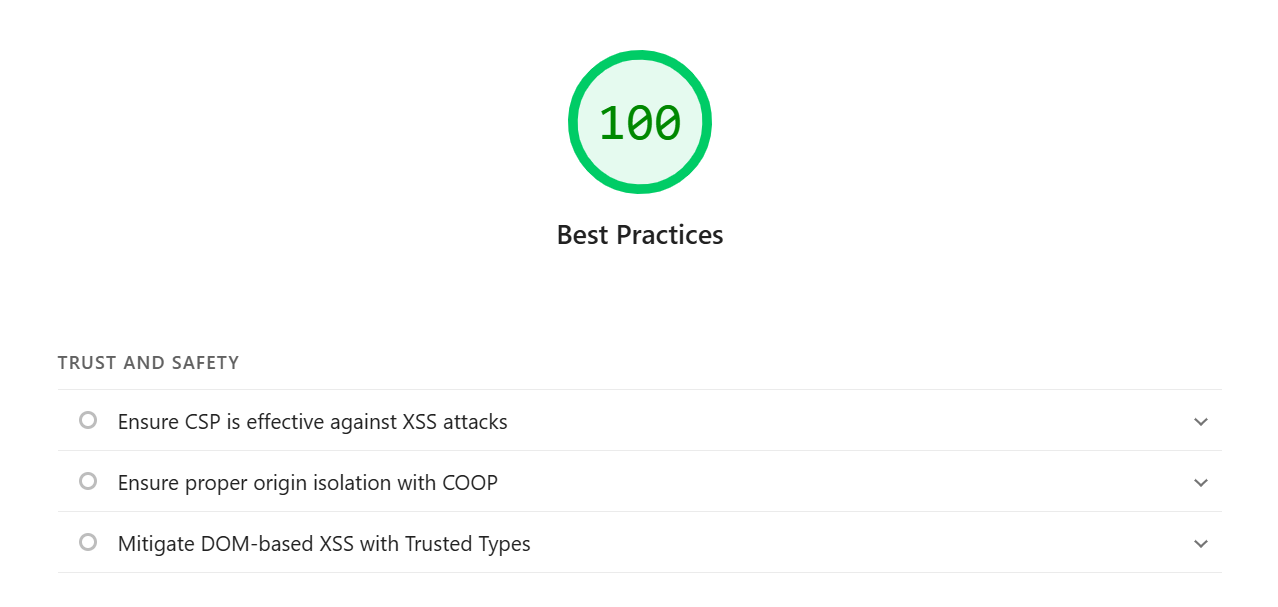
What best practices does Lighthouse check?
Lighthouse runs over 14 different audits checking page errors, UX issues, and more.
Let’s take a look at each audit, as well as recommendations to pass each one to achieve a score of 100.
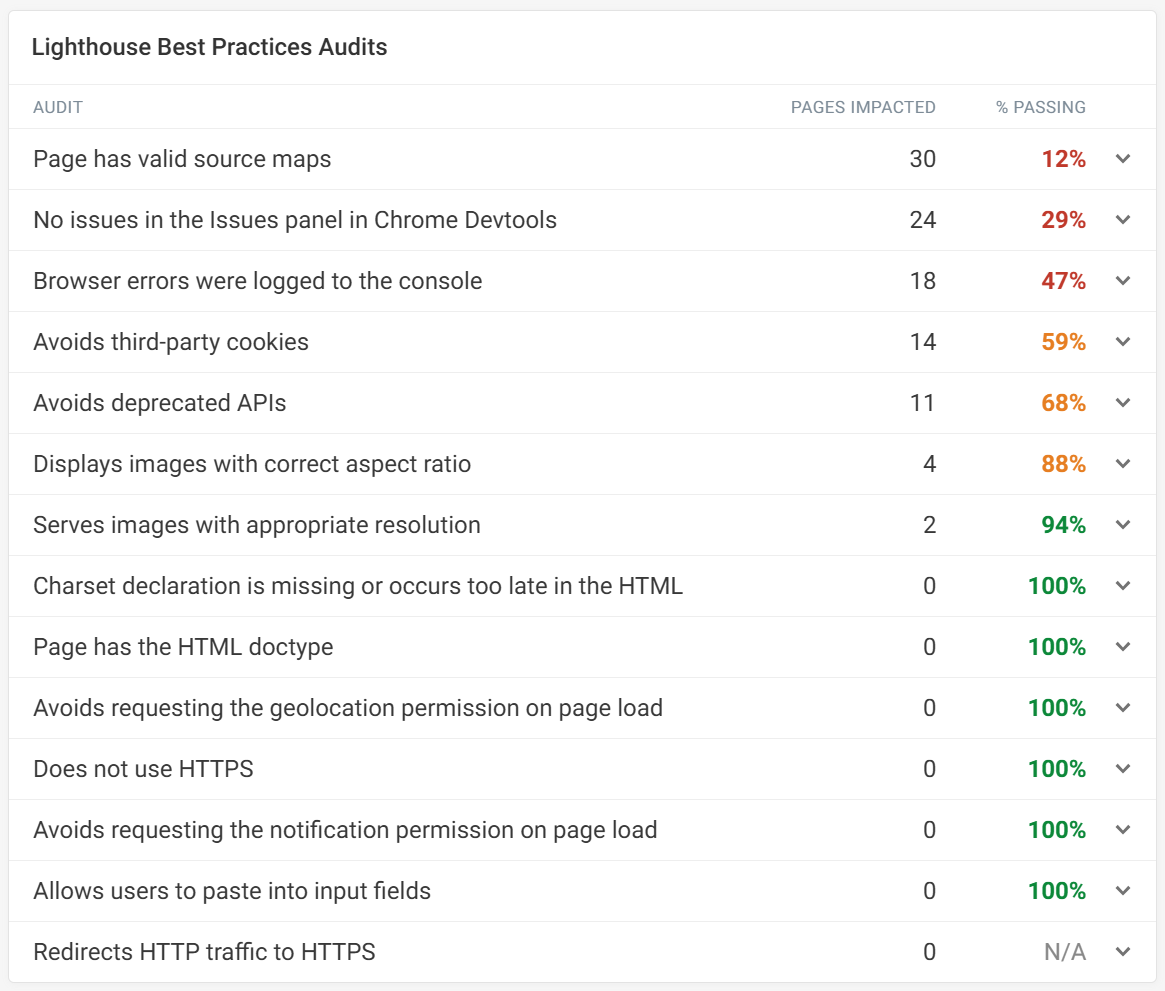
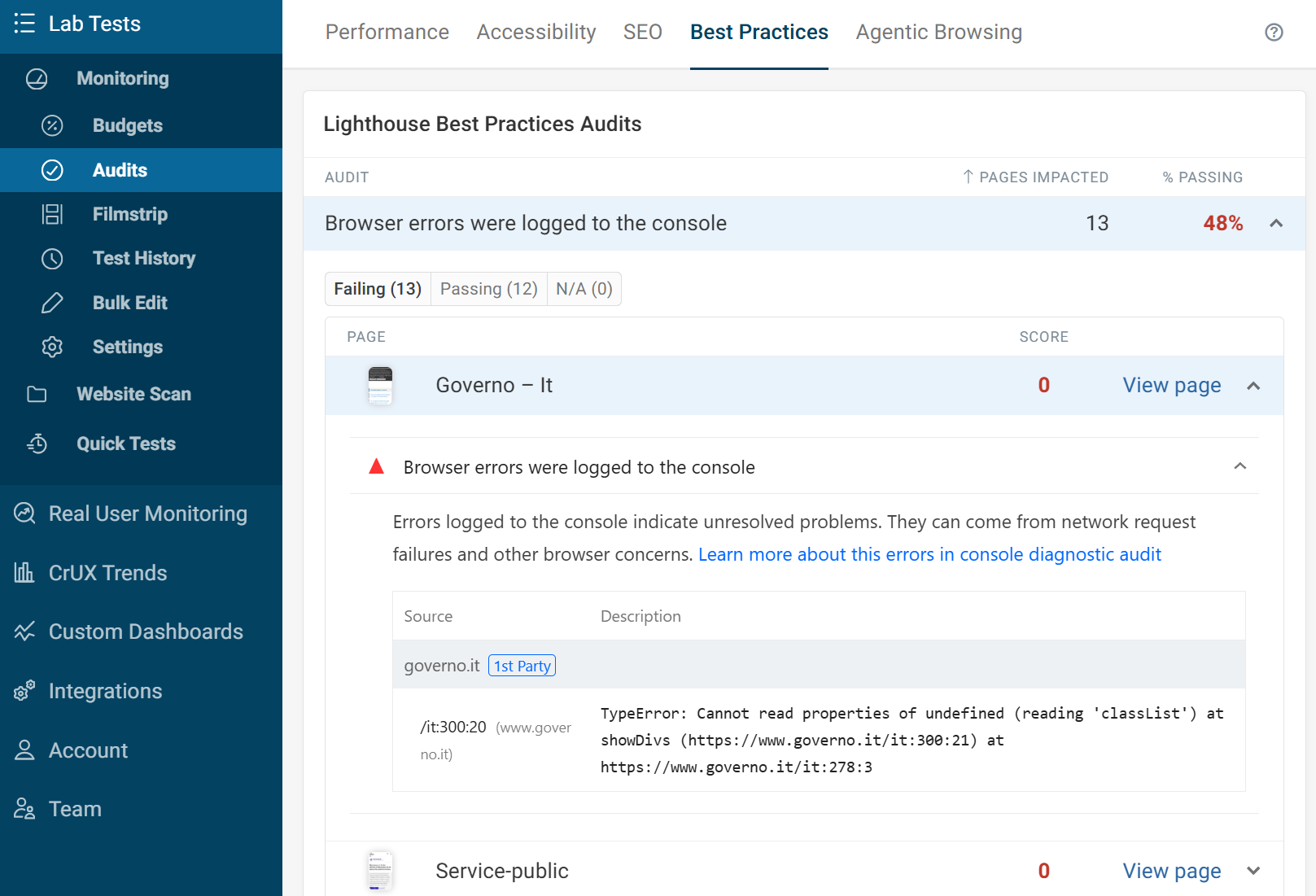
The screenshot above comes from DebugBear's website-wide audits dashboard.
Page has valid source maps
A source map is a file that links minified or compiled code back to the original source code that developers wrote.
Source maps make it much easier to debug production issues because browser developer tools can show the original files and line numbers instead of the transformed code. Source maps can also improve tooling and analysis, allowing tools such as Lighthouse to provide more accurate insights and recommendations.
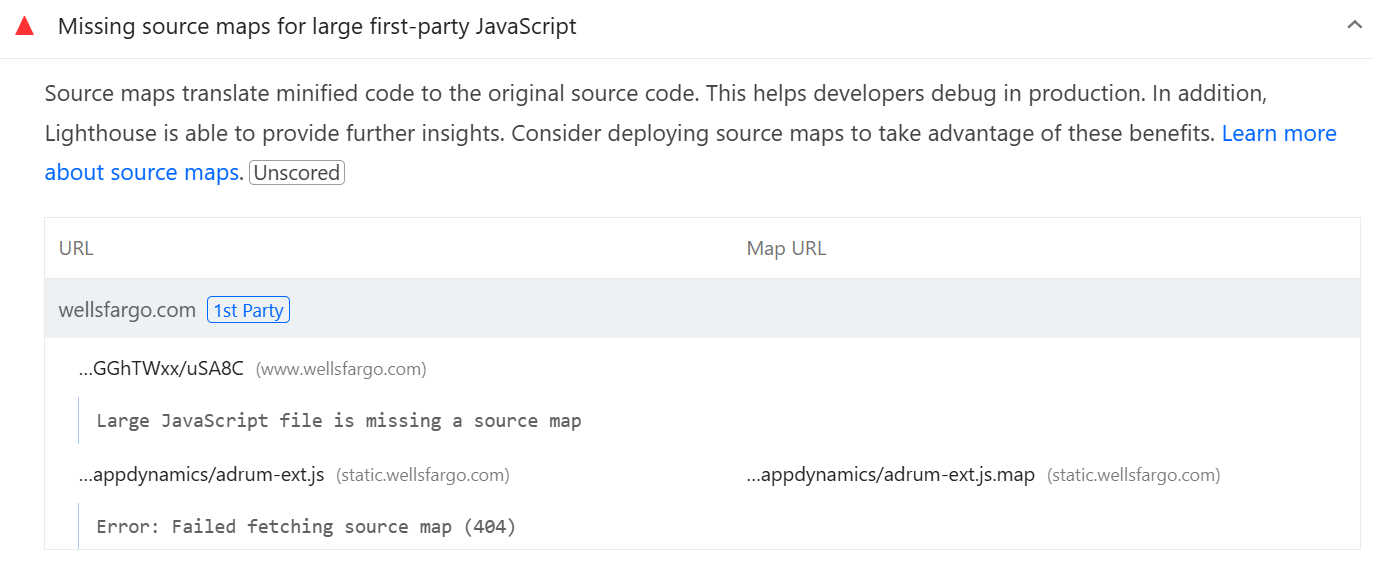
Build tools like Webpack, Vite, or esbuild can generate source maps when building your application.
No issues in the Issues panel in Chrome DevTools
Lighthouse detects issues that were logged to the Chrome DevTools Issues panel. These cover a variety of issues including: security weaknesses, failed network requests and Cross-Origin Resource Sharing (CORS) errors.
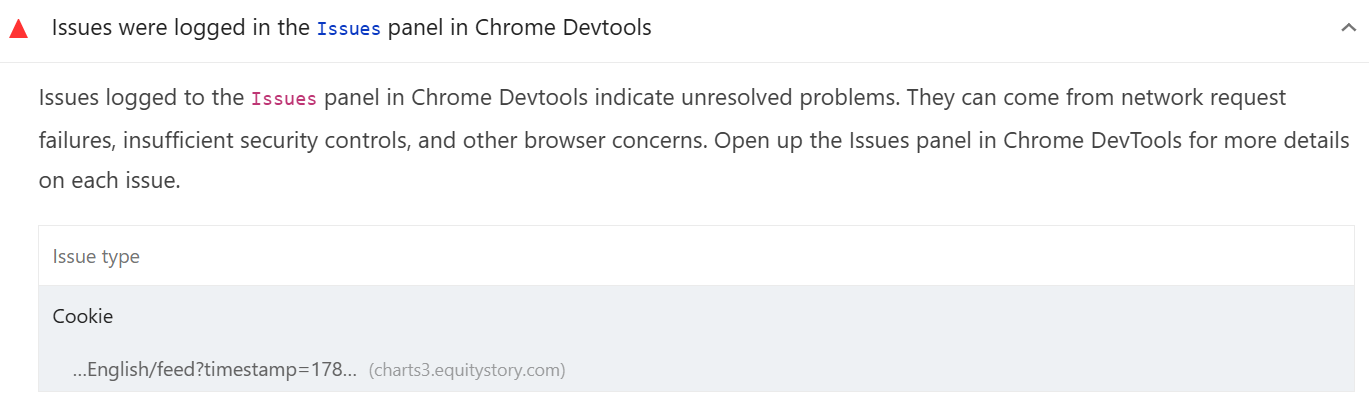
To review these issues on your website, open DevTools and select More Tools, then select Issues from the dropdown. Any issues will be listed and explained with links to relevant documentation from Google.
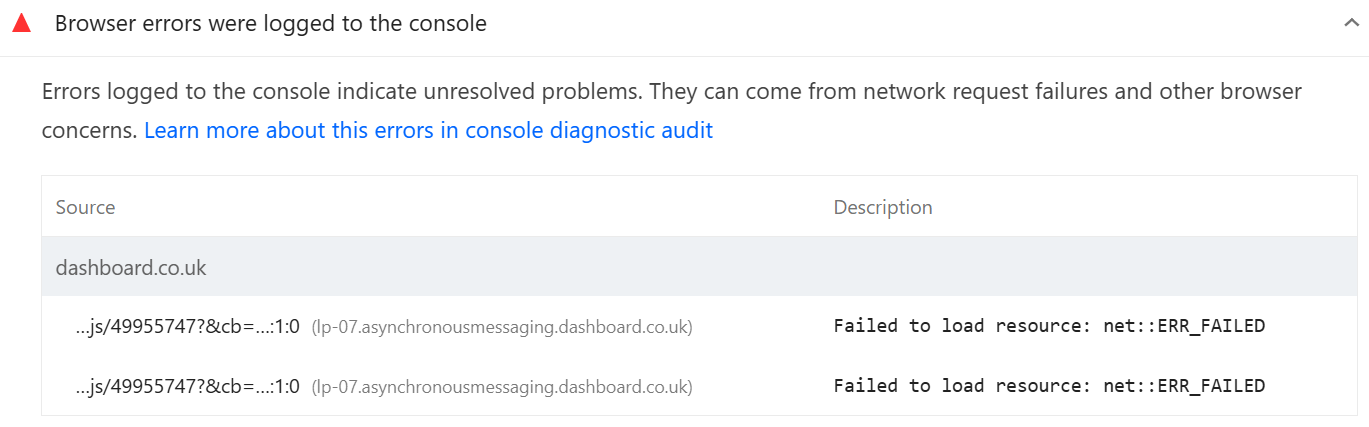
Browser errors were logged to the console
Similar to the issues panel, this audit warns against browser errors being logged to the console.
Additional information for each error is shown, including the option to view the call stack and the code in the top right corner which failed to execute.
Common causes include JavaScript exceptions from broken third-party scripts, failed API calls, and references to undefined variables or functions, all of which can leave parts of a page broken or unresponsive for visitors.
Avoids third-party cookies
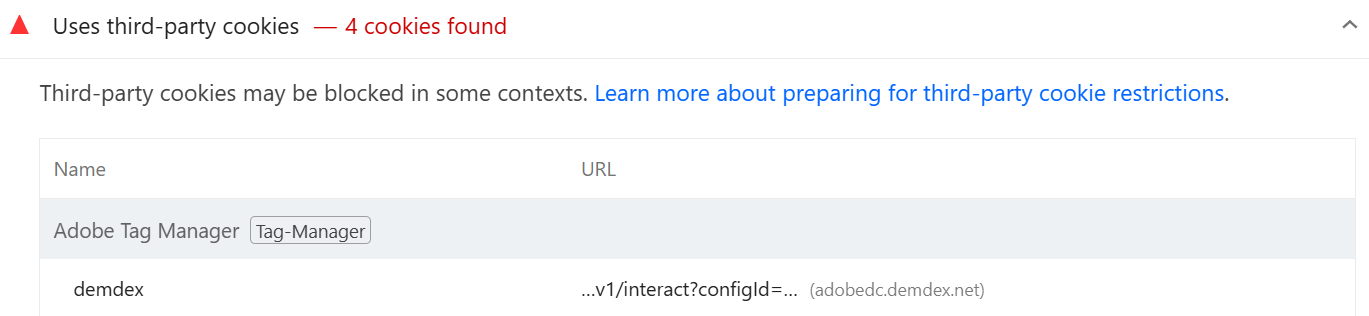
Third-party cookies are cookies set by a domain other than the website you're visiting, typically when loading embedded content or external services. These cookies enable features like analytics, advertising, and more.
Any cookies used in cross-site contexts today must be set with the SameSite=None attribute to protect user data from cross-site tracking.
You can view each cookie on your website in the Application panel and sort by their header to see which cookies are blocked.
Avoids deprecated APIs
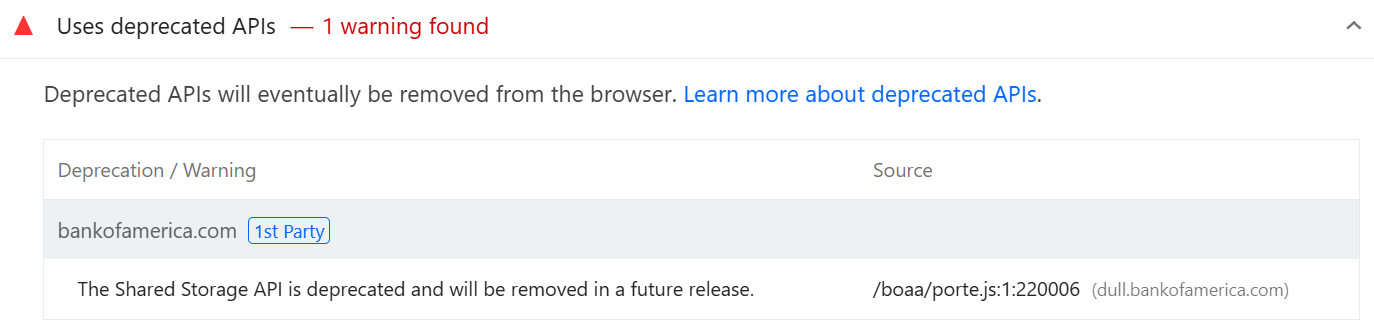
Deprecated APIs are older browser features that are planned for removal in future versions of Chrome. If your site continues to use them after they're removed, it may experience errors or broken functionality for some visitors.
Each outdated API is listed in the audit for you to either remove or replace.
Displays images with correct aspect ratio
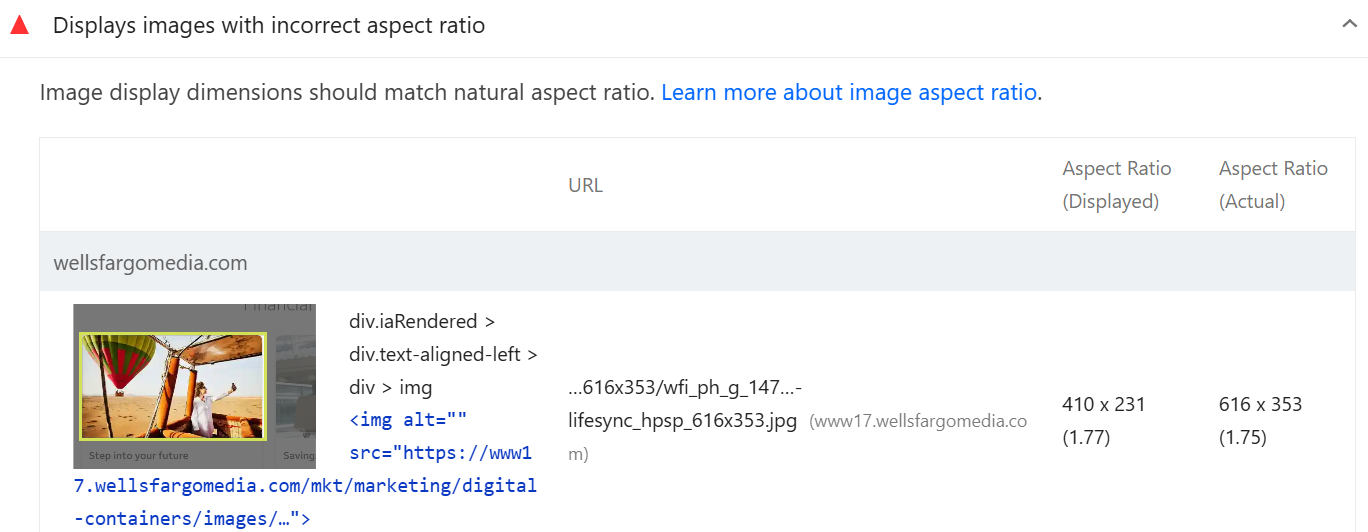
Images with an incorrect aspect ratio can impact user experience. Any images which don't match the intended ratio are listed in this audit, showing the difference in sizing.
To combat this, you can use a content delivery network (CDN) to automatically serve appropriately sized images. Also, ensure images have the correct CSS aspect ratio and specify their width and height attributes in HTML to prevent layout shifts as images load.
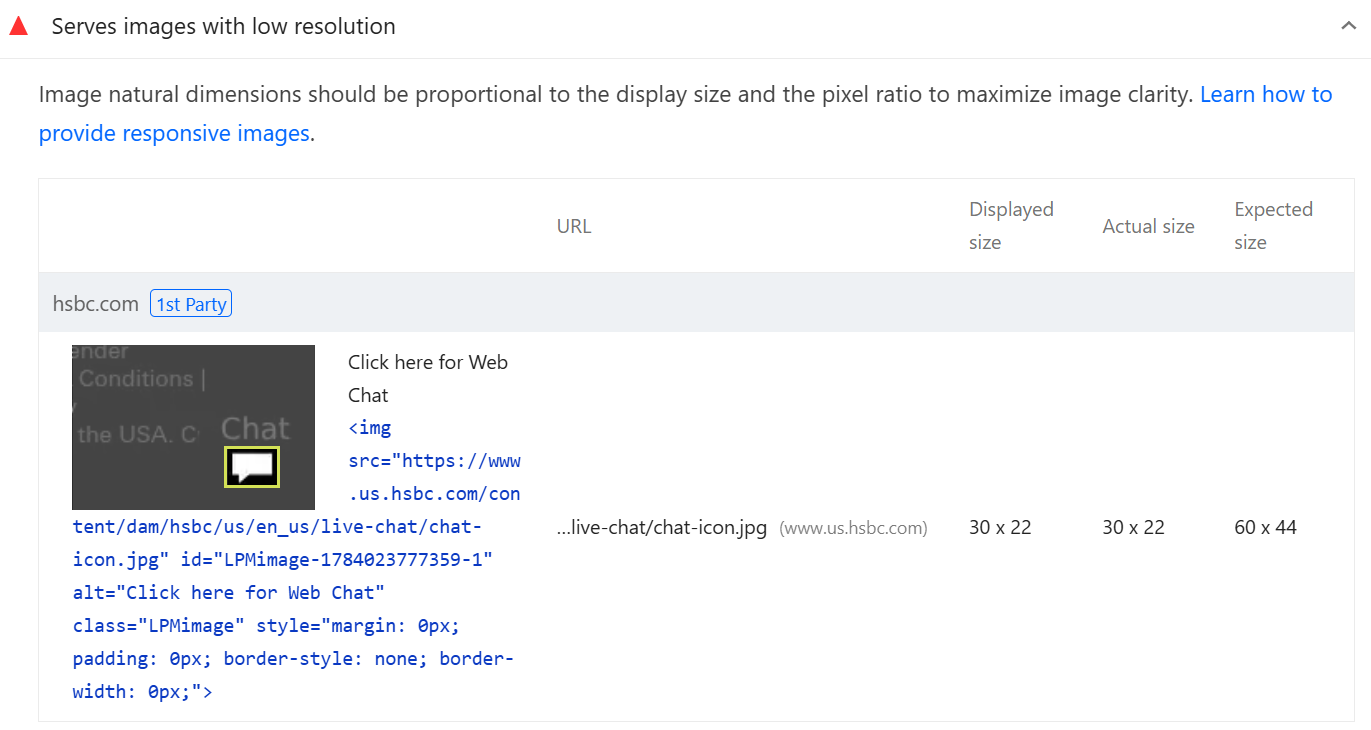
Serves images with appropriate resolution
Serving low resolution images can reduce visual quality, resulting in blurry content. On the other hand, serving desktop images on mobile devices can use more data than needed. Any images which are not served with the appropriate resolution are listed in this audit.
Using responsive images with the srcset attribute can make sure the image best suited for a device is loaded. Another option is to use a CDN.
Charset declaration is missing or occurs too late in the HTML
The charset declaration tells the browser how to interpret the bytes in your HTML as text, ensuring characters display correctly. Not including this declaration can cause visibility issues for the visitor.
If this audit is failing, the first check is to review that the declaration is there and correct. If this is the case and the audit is failing, then the declaration occurs too late in the HTML. The element should be in the head and the first 1024 bytes of the document.

Page has the HTML doctype
Each page on your website should declare the HTML doctype to ensure that the page renders correctly. It's unlikely that this audit will fail as this is standard practice.
If your page is missing the declaration, then you simply need to add the following to the top of the HTML:
<!DOCTYPE html>

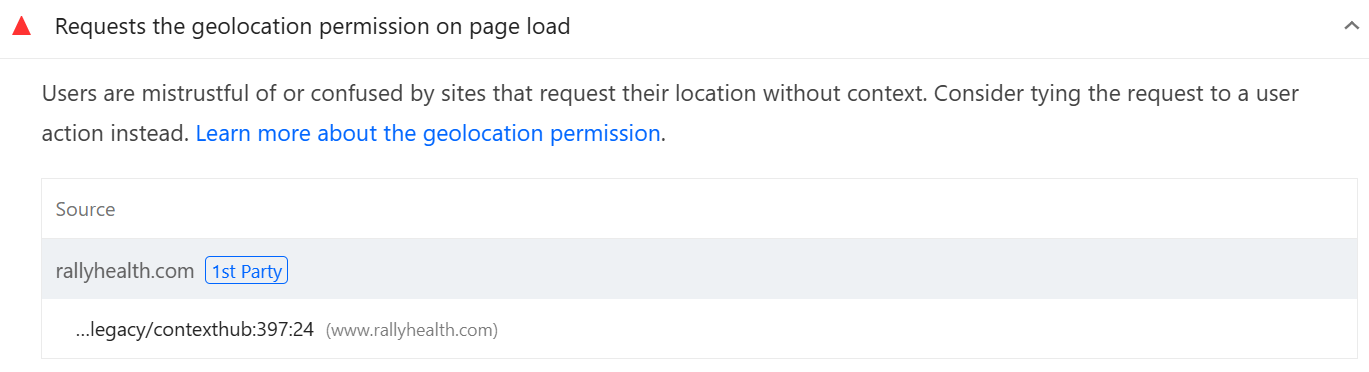
Avoids requesting the geolocation permission on page load
Lighthouse flags pages that request the user's location by checking all JavaScript executed as soon as the page loads. This audit can be passed by asking for a user's location responsibly, removing any calls to geolocation.getCurrentPosition() and geolocation.watchPosition() that occur on page load.
To provide a better user experience, assume visitors won't grant location access by default. Use the <geolocation> element, and only request geolocation permission in response to a user action.
Does not use HTTPS
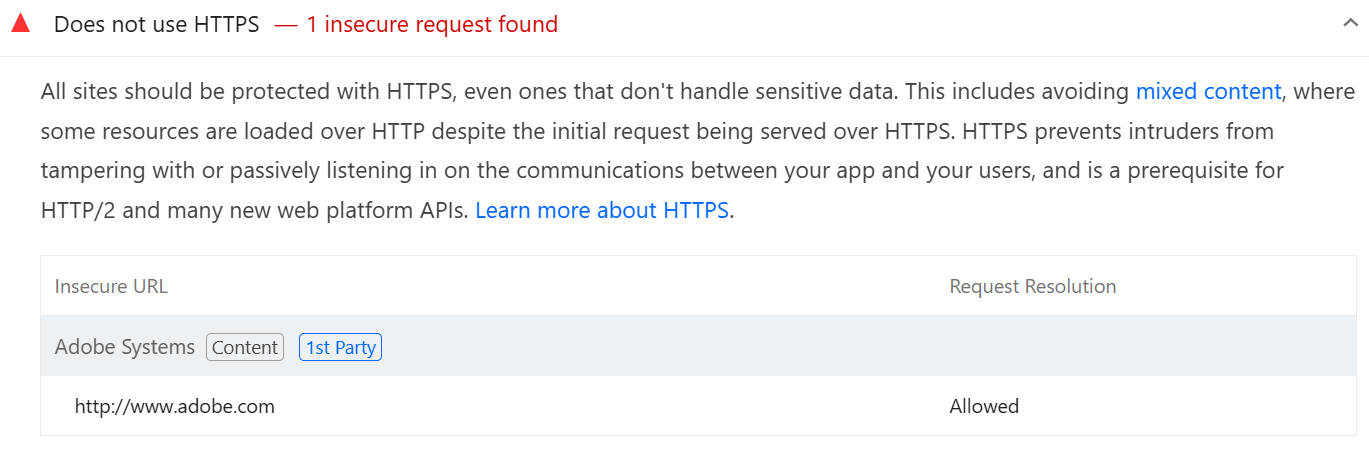
This audit verifies that your website uses HTTPS for all pages and resources, helping protect data and avoid browser security warnings.
If your website is already running on HTTPS but failing this audit, the likely cause is mixed content. This is where other resources, such as images or scripts, are loaded over an insecure HTTP connection and will need to be revised individually.
Avoids requesting the notification permission on page load
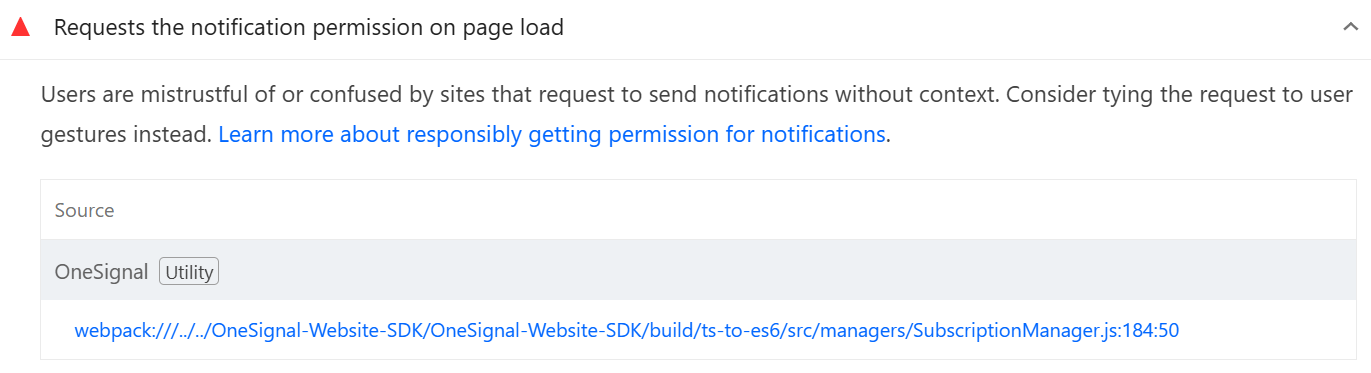
Lighthouse checks if notifications are requested on page load. This could lead to a poor experience, as those notifications may not be relevant to your users or their needs. The audit will automatically fail if notification.requestPermission() executes on the page load.
Instead of asking immediately, first let users opt in to a specific type of notification, then request browser permission only after they've chosen to receive a notification.
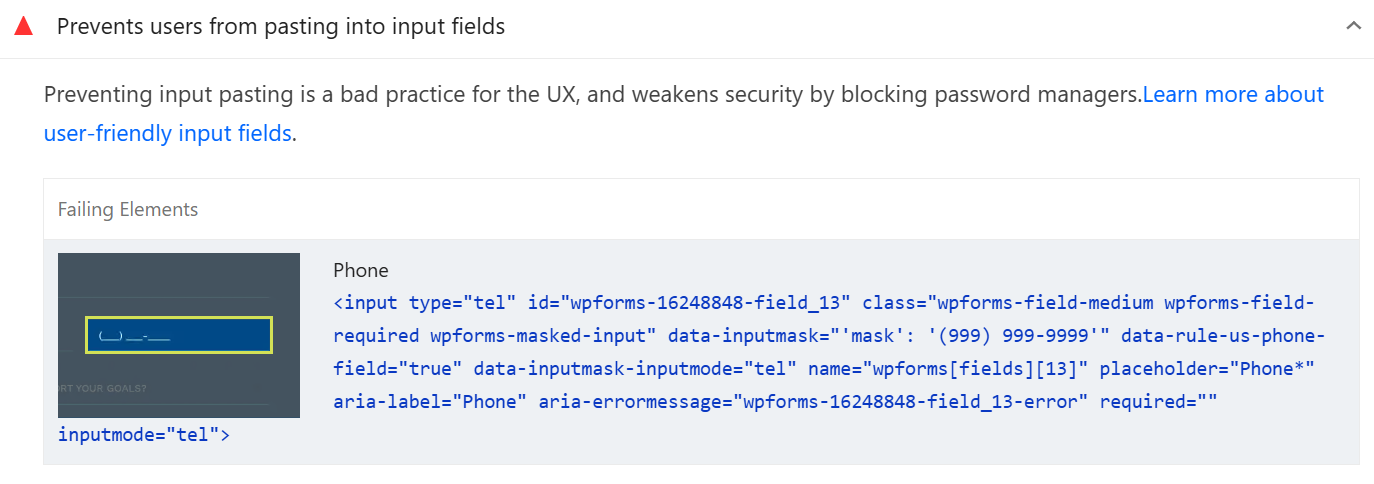
Allows users to paste into input fields
Allowing users to paste passwords improves security by supporting password managers, which generate and store strong, unique passwords and automatically fill them in when needed. Websites should not prevent users from pasting into password fields.
This issue is often caused by a paste event listener on the password input that calls preventDefault(), which blocks users from pasting their passwords.
Redirects HTTP traffic to HTTPS
If your site supports HTTPS, all HTTP requests should automatically redirect to the secure HTTPS version. This helps protect user data, ensures visitors always use a secure connection, and follows web security best practices.
Without this redirect, visitors who type your domain without https://, or follow an old HTTP link, will load the insecure version of your site instead of being sent to HTTPS. You can configure this redirect at the server or CDN level, and consider adding an HSTS header so that browsers remember to request the HTTPS version directly on future visits.

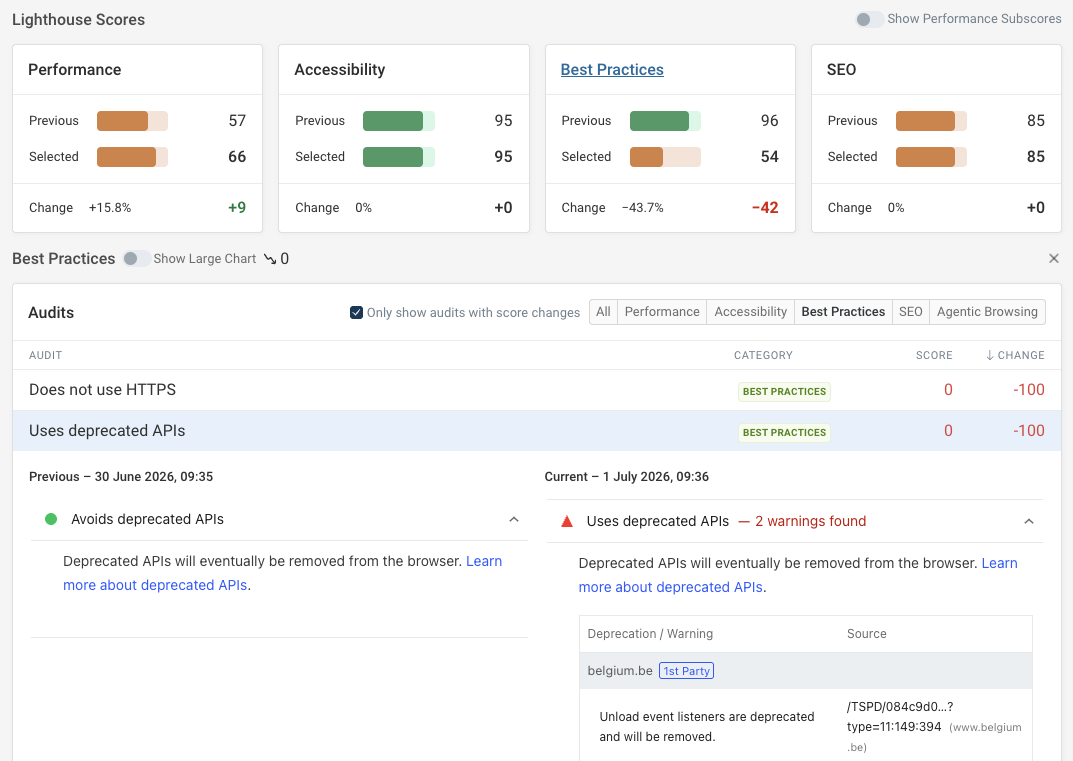
Monitor your website and check all Lighthouse audits with DebugBear
In this article we looked specifically at the Best Practices category and the related audits. Lighthouse has five different categories in total, with an extensive list of audits for each one, meaning that achieving good scores consistently can require a lot of revision and maintenance.
With DebugBear, you can monitor charts and show comparisons for each Lighthouse category, and identify exactly what audit caused the regression.
The easiest way to quickly identify which audits are passing or failing is by monitoring your website with DebugBear and viewing the aggregate audits tab. This report orders all of the pages in your project, showing the percentage of pages that are passing each audit, so you don't need to check each page individually.
You can also set up performance budgets for each Lighthouse category, to be automatically notified if a score regresses on your website.
Sign up for a free 14-day trial and start monitoring your website today.
Monitor Page Speed & Core Web Vitals
DebugBear monitoring includes:
- In-depth Page Speed Reports
- Automated Recommendations
- Real User Analytics Data